Mobile House မန္ဘာ မ်ား ေက်းဇူး ၿပဳ ၿပီး www.mobilehouse.co.nr မွ တိုက္ ရိုက္ ၀င္ေပး ပါ ရန္ ႏွင္႔ အသစ္ တင္ သမွ် ကို သိရွိ ေစရန္
https://www.facebook.com/MobileHouseServiceCentre
မွာ Like လုပ္ ေပး ၾက ပါ ....

Showing posts with label Nokia. Show all posts

Monday, June 10, 2013

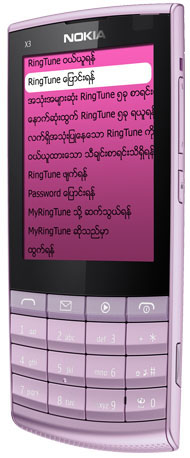
MyRingTune+


  • - MyRingTune (call back ringtone) ၀န္ေဆာင္မႈ ႏွင့္ တြဲဖက္အသံုးျပဳႏိုင္သည့္ ေဆာ့ဖ္၀ဲလ္
  • - MyRingTune Code နံပါတ္သိရွိရံုျဖင့္ သီခ်င္းသံစဥ္မ်ား ၀ယ္ယူျခင္း၊ ေျပာင္းလဲျခင္းတို႔ကို sms code နံပါတ္မ်ား သိရွိရန္မလိုအပ္ဘဲ အလြယ္တကူလုပ္ေဆာင္ႏိုင္သည္။


Download for Java
Download for Symbian 3rd Edition
Download for Symbian 5th, Symbian^3
Download for Android


ဆက္ဖတ္ရန္>>>

sm³ မိုဘိုင္းဖုန္းသံုးလမ္းညႊန္

  မိုဘိုင္းဖုန္းမ်ားတြင္ လြယ္ကူစြာ ထည့္သြင္းအသံုးျပဳႏိုင္မည့္ sm³ မိုဘိုင္းဖုန္းသံုးလမ္းညႊန္ကို ျမန္မာ/အဂၤလိပ္ႏွစ္ဘာသာျဖင့္ ၂၀၀၉ ခုႏွစ္မွ စတင္ကာ သံုးစြဲသူမ်ားအတြက္ အခမဲ့ ျဖန္႔ခ်ိေပးလ်က္ရွိပါသည္။
      မိုဘုိင္းဖုန္းသံုးစြဲသူမ်ားအတြက္ ေန႔စဥ္လုပ္ငန္းေဆာင္တာ မ်ား လြယ္ကူေခ်ာေမာစြာ ဆက္သြယ္ေျပာဆိုႏိုင္ရန္ ရည္ရြယ္၍ ဖုန္းျဖင့္ စံုစမ္းေမးျမန္းျခင္း၊ ၾကိဳတင္ Booking /Reservation တင္ျခင္းမ်ား၊ ဖုန္းျဖင့္ အမွာစာ မွာၾကားျခင္းႏွင့္ အိမ္အေရာက္ ၀န္ေဆာင္မႈမ်ား ေခၚယူျခင္း အစရွိသည္တုိ႔ကို လုပ္ေဆာင္ႏိုင္ရန္ လိုအပ္ႏိုင္မည့္ ဖုန္းနံပါတ္ႏွင့္ လိပ္စာမ်ားကို စုစည္းေပးထား ပါသည္။
      တစ္ေန႔တာလိုအပ္မည့္ ဖုန္းနံပါတ္မ်ားအျပင္ လုပ္ငန္း ေပါင္းစံုႏွင့္ ၀န္ေဆာင္မႈေပါင္းစံုကိုလည္း စုစည္းထားသည္။ ယင္းအျပင္ သက္ဆိုင္ရာ က႑အလိုက္၊ ျမိဳ႕နယ္အလိုက္၊ ေနရာအလိုက္ လုပ္ငန္းမ်ား၏ ဖုန္းနံပါတ္မ်ားကိုလည္း ရွာေဖြ စနစ္ျဖင့္ ရွာေဖြႏိုင္ရန္ စီမံထားပါသည္။

Download for Symbian 3rd (Mandalay Version)
Download for Symbian 3rd (Yangon Version)
Download for Symbian 5th, Symbian^3 (Mandalay Version)
Download for Symbian 5th, Symbian^3 (Yangon Version)
Download for Java (Mandalay Bluetooth Share Version)
Download for Java (Yangon Bluetooth Share Version)
Download for Java (Yangon Version)
Download for Java (Mandalay Version)
Download for Android (YGN+MDY)


ဆက္ဖတ္ရန္>>>

Thursday, March 14, 2013

New Nokia Zawgyi Keyboard

New Nokia Zawgyi Keyboard


​Nokia Symbian Myanmar Zawgyi Keyboard
​မ​ဂၤ​လာ​ပါ
Symbian ​သံုး​ဖုန္း​ျဖစ္​တဲ႔ Nokia ​ဖုန္း​ေတြ​မွာ ​ေဇာ္​ဂ်ီ​ကီး​ဘုတ္​အ​သစ္ ​ရ​ပါ​ၿပီ။ ​အ​ေစာ​ပိုင္း​က​ေတာ့ Opera Mini ​မွာ ​ျမန္​မာ​လို ​ျမင္​ရ​ေအာင္ ​လုပ္​ထား​ၾက​ေတာ့ Web Text Editor ​ေလး​နဲ႔ Opera Mini ​ထဲ​မွာ​ပဲ ​ေဇာ္​ဂ်ီ​ကို ​ရိုက္​လို႕​ရ​ေအာင္ ​လုပ္​ခဲ႔​ပါ​တယ္။ ​ဒါ​ေပ​မယ္႔ ​ကၽြန္​ေတာ္ Responsive ​အ​ေန​နဲ႔ ​မ​ေရး​ခဲ႔​ေတာ့ ​ဖုန္း​အ​ေန​အ​ထား​ေပၚ​မူ​တည္​ၿပီး ​အ​ဆင္​မ​ေျပ​ျဖစ္​တာ ​မ်ား​ပါ​တယ္။
​ဟိုး ​အ​ရင္​က​လည္း Nokia ​ဖုန္း​ေတြ​အ​တြက္ ​ကီး​ဘုတ္​တစ္​မ်ိဳး ​ထြက္​ခဲ႔​ပါ​ေသး​တယ္။ ​ဒါ​ေပ​မယ္ ​ထည္႔​ဖို႕​ရာ ​သိပ္​အ​ဆင္​မ​ေျပ​ပါ​ဘူး​။ ​ဖုန္း​ကို Hack ​ထား​မွ ​ထည္႔​လို႕​ရ​ပါ​တယ္။ Hack ​ထား​ရင္​ေတာင္​မွ ​မူ​လ​႐ွိ​ၿပီး​သား ​ကီး​ဘုတ္​ေန​ရာ​မွာ ​အ​စား​ထိုး​ခြင္႔ ​မ​ေပး​တာ​မ်ိဳး​လည္း ​႐ွိ​ပါ​တယ္။
​ယ​ခု​နည္း​က​ေတာ့ ​ကၽြန္​ေတာ္ ​တ​႐ုတ္​ေဆာ့​ဖ္​ဝဲလ္ Baidu Input ​ရဲ႔ Skin ​ကို​သာ ​ဆြဲ​ထား​တာ ​ျဖစ္​တဲ႔​အ​တြက္ ​ဖုန္း​ကို Hack ​ထား​ဖို႕​လည္း ​မ​လို​ပါ​ဘူး​။ Baidu Input ​ေဆာ့​ဖ္​ဝဲလ္​ကို​သြင္း​ၿပီး ​ကိုယ္​ဆြဲ​ထား​တဲ႔ ​ေဇာ္​ဂ်ီ​ကီး​ဘုတ္ Skin ​ကို ​၎ Baidu Input ​မွာ ​ေ​႐ြး​ေပး​လိုက္​ရံု​ပါ​ပဲ။
​ထည္႔​သြင္း​နည္း​
​လို​အပ္​ေသာ File ​မ်ား​ကို Download ​လုပ္​လိုက္​ပါ။ ​ၿပီး​ေနာက္ Memory ​ထဲ​သို႕ ​ကူး​ထည္႔​ပါ။
Download
Zip ​တြင္ Password ​ပါ​ခဲ႔​ပါ​က nweyoe ​ျဖစ္​သည္။
​အ​ဆင္႔ ​၁ ။    ။ Baiduinput_symbian3_v5_v3.1_1000e.sisx ​ကို ​ဖုန္း​ထဲ​၌Install ​လုပ္​ပါ။
​အ​ဆင္႔ ​၂ ။    ။ C:\baidu\input\touchskin ​ထဲ​သို႕ Zawgyi-Keyboard.bds ​ကို Copy ​ကူး​ထည္႔​ပါ။ ​ဒီ​တိုင္း​ထည္႔​မ​ရ​လ်ွင္ X-plore ​ကို​သံုး​၍​ထည္႔​ပါ။ X-plore ​အ​ေၾကာင္း ​ဤ​ေန​ရာ​တြင္ ​႐ွင္း​ျပ​မ​ေန​ေတာ့​ပါ။ )
​ဒီ​အ​ဆင္႔​ထိ​က​ေတာ့ ​ေဆာ့​ဖ္​ဝဲလ္​ထည္႔​ျခင္း ​ၿပီး​ပါ​ၿပီ။
​ေဇာ္​ဂ်ီ​ကီး​ဘုတ္ ​ေျပာင္း​နည္း​
Application Menu ​ထဲ​မွ Du ​ဆို​ေသာ Icon ​ေလး​ကို ​ဖြင္႔​ပါ။ ​တ​႐ုတ္​လို​ေတြ ​ေပၚ​လာ​ပါ​လိမ္႔​မယ္။
​နံ​ပါတ္ ​၁ ​ကို​ေ​႐ြး​ပါ။
​နံ​ပါတ္ ​၁ ​ကို​ေ​႐ြး​ၿပီး​လ်ွင္ ​အ​ေပၚ​ဆံုး​တစ္​ခု​ကို ​ေ​႐ြး​ပါ။ ​ေနာက္​တစ္​ခု ​တက္​လာ​လ်ွင္ ​အ​ေပၚ​ဆံုး​တ​႐ုတ္​စာ ​ပါ​တာ​ကို ​ေ​႐ြး​ပါ။ AknFEP ​သည္ ​မူ​လ ​ကီး​ဘုတ္​ျဖစ္​သည္ )
Nokia Zawgyi Myanmar Keyboard
​ေနာက္​သို႕ ​ျပန္​ထြက္​ပါ။
​နံ​ပါတ္ ​၄ ​ကို​ေ​႐ြး​ပါ။
​နံ​ပါတ္ ​၄ ​ကို​ေ​႐ြး​ၿပီး​လ်ွင္ ​အ​ေပၚ​ဆံုး​တစ္​ခု​ကို ​ေ​႐ြး​ပါ။
​ပံု​စံ ​ေ​႐ြး​ခိုင္း​ပါ​လိမ္႔​မည္။ ​ဒု​တိ​ယ Tab ​ကို​သြား​ပါ။ Baidu-Zawgyi-Keyboard ​ကို​ေ​႐ြး​ႏွိပ္​လိုက္​ပါ။ Popup ​တက္​လာ​လ်ွင္ ​အ​ေပၚ​ဆံုး ​တစ္​ခု​ကို ​ေ​႐ြး​ေပး​ပါ။ ​ဒု​တိ​ယ​တစ္​ခု​သည္ ​ထည္႔​ထား​ေသာ Skin ​ကို Delete ​လုပ္​ျခင္း​ျဖစ္​သည္။ )
Nokia Zawgyi Myanmar Keyboard
​အ​ဆင္႔​ဆင္႔ Back ​ျပန္​သြား​၍ ​ထြက္​လိုက္​ပါ။
Message ​မွာ ​စာ​ဝင္​ရိုက္​ၾကည္႔၊ ​ကီး​ဘုတ္​ေပၚ​က ​အ​ဂၤ​လိပ္ ​အ​လံ​ေလး​ကို​ႏွိပ္​ၾကည္႔​ပါ​ဦး​။ ​စာ​ရိုက္​မ​ရ​ေသး​ပါ​က ​ညာ​ဖက္ ​အ​ေပၚ​ဆံုး​႐ွိ ​တ​႐ုတ္​စာ​ကို ​ႏွိပ္​ပါ။ Horizontial ​ကို​ေ​႐ြး​လိုက္​ပါ။​ေဇာ္​ဂ်ီ ​ကီး​ဘုတ္ ​ေပၚ​လာ​ပါ​လိမ္႔​မယ္။
​ရိုက္​နည္း​က​ေတာ့ ​ပံု​မွန္​အ​တိုင္း​ပါ​ပဲ။ ​ပါဌ္​ဆင္႔​ေတြ​ကို​ေတာ့ ​မူ​ရင္း​စာ​လံုး​ေန​ရာ​ေတြ​မွာ ​ထည္႔​ထား​ပါ​တယ္။ ​ဥ​ပ​မာ ​ဆ ​ရဲ႔ ​ပါဌ္​ဆင္႔​ကို​ရိုက္​မယ္​ဆို​ရင္ ​ဆ ​ကို​ဖိ​ထား​လိုက္​ရံု​ပါ။
​အို​ေက ​စာ​ေတာ့ ​ရိုက္​လို႕​ရ​သြား​ပါ​ၿပီ။ ​စာ​ရိုက္​ဖို႕​အ​တြက္ ​ကီး​ဘုတ္ ​သတ္​သတ္​ပါ​ပဲ။ Font ​ကို​ျမင္​ရ​ဖို႕​က​ေတာ့ Font Zoomer ​လို​မ်ိဳး Font ​ေျပာင္း​တဲ႔ ​ေဆာ့​ဖ္​ဝဲလ္​သံုး​ၿပီး ​ေျပာင္း​ပါ။ Zawgyi Font ​ေျပာင္း​လိုက္​လွ်င္ ​ဖုန္း​ထဲ​၌ ​တ​႐ုတ္​စာ ​ျမင္​ရ​ေတာ့​မည္ ​မ​ဟုတ္​ပါ။
Baidu ​ထဲ​မွ ​နံ​ပါတ္ ​၄ ​ကို ​ျပန္​ႏွိပ္​ၿပီး ​ေနာက္​ခံ​မ်ား ​ေျပာင္း​လဲ​နိုင္​ပါ​တယ္။ ​ပို​၍​သပ္​ရပ္​ေသာ ​ကီး​ဘုတ္​ေလး ​ရ​ပါ​လိမ္႔​မယ္။
​ကဲ ​ပို​႐ွင္း​သြား​ေအာင္ FAQ ​ေလး ​ဆက္​ဖတ္​လိုက္​ပါ​ဦး​။
​ေမး​။    ။ ​ေဇာ္​ဂ်ီ​ကီး​ဘုတ္​အ​ျပင္ ​ဘာ​ကီး​ဘုတ္​ေတြ ​ပါ​ေသး​လဲ။
​ေျဖ။    ။ ​အ​ဂၤ​လိပ္​ပါ​မယ္၊ ​တ​႐ုတ္ Pinyin ​ပါ​မယ္။
​ေမး​။    ။ ​ကီး​ဘုတ္​ေတာ့ ​ျမင္​ရ​ၿပီ ​ဒါ​ေပ​မယ္႔ ​ရိုက္​လိုက္​ရင္ ​ေလး​ေထာင္႔​တုန္း​ေတြ​ပဲ ​ေပၚ​တယ္။ ​ဘာ​ျဖစ္​လို႕​လဲ။
​ေျဖ။    ။ ​ဟုတ္​ကဲ႔။ ​ဒါ​က ​ကီး​ဘုတ္​သတ္​သတ္​ပါ​ပဲ။ Font ​ကို​ျမင္​ခ်င္​ရင္ Font Zoomer ​လို Font ​ေျပာင္း​ေပး​တဲ႔ Software ​တစ္​မ်ိဳး​ကို​သံုး​ပါ။ ​အဲ​ဒါ​ဆို​ရင္ ​ဖုန္း​တစ္​ခု​လံုး​မွာ ​ျမန္​မာ​လို ​ရိုက္​လို႕​ရ​သြား​ပါ​ၿပီ။ ​ဒါ​ေပ​မယ္႔ ​စာ​လံုး​ထပ္​ၿပီး ​မ​သပ္​မ​ရပ္ ​ျဖစ္​တဲ႔ ​ျပ​ႆ​နာ​ေတာ့ ​႐ွိ​ပါ​တယ္။
​ေမး​။    ။    ​တ​႐ုတ္​ေဆာ့​ဖ္​ဝဲလ္​ကို ​ျပန္​ျပင္​ထား​တာ​ဆို​ေတာ့ Error ​မ်ား ​႐ွိ​နိုင္​မ​လား​၊ Master Reset ​ခ်​မွ ​ျပန္​ျဖဳတ္​လို႕ ​ရ​တာ​မ်ိဳး​ေပါ့​။
​ေျဖ။    ။    ​မ​႐ွိ​ပါ​ဘူး​။ ​ျဖဳတ္​ခ်င္​ရင္ Baidu Input ​ကို ​အ​လြယ္​တ​ကူ​ပဲ ​ျပန္​ျဖဳတ္​နိုင္​ပါ​တယ္။ ​မူ​လ​ကီး​ဘုတ္ (AknFEP ​ကို Baidu Input ​ထဲ​မွာ ​ျပန္​ေ​႐ြး​ၿပီး​ရင္​ေပါ့​။
​ေမး​။    ။    Contact ​နာ​မည္​ေျပာင္း​တာ​ေတြ၊ Message ​ပို႕​တာ​ေတြ​မွာ ​စာ​လံုး​ေတြ ​မ​သပ္​မ​ရပ္​ျဖစ္​တာ​မ်ိဳး​နဲ႔ ​စာ​လံုး​ထပ္​တာ​ေတြ​႐ွိ​ပါ​တယ္။ ​အ​မွန္​အ​တိုင္း ​သပ္​သပ္​ရပ္​ရပ္​ျမင္​ေအာင္ ​ဘယ္​လို​လုပ္​ရ​ပါ​မ​လဲ။
​ေျဖ။    ။    ​ေဇာ္​ဂ်ီ​မွ ​မ​ဟုတ္​ပါ​ဘူး​။ ​အ​ျခား ​ျမန္​မာ Font ​ေတြ​ထည္႔​လည္း ​ျဖစ္​ပါ​တယ္။ ​အ​ခု​ေတြ့​ရ​သ​ေလာက္​က​ေတာ့ Symbian ​ဖုန္း​ထဲ​မွာ ​ျမန္​မာ​စာ​ကို ​သပ္​သပ္​ရပ္​ရပ္​နဲ႔ ​အ​မွန္​အ​တိုင္း ​ျမင္​နိုင္​တာ Vibar ​ထဲ​မွာ​ရယ္၊ Nokia Car Mode ​မွာ​ရယ္၊ Blob ​ဆို​တဲ႔ Blogger and WordPress Client ​ထဲ​မွာ​ရယ္​ပါ​ပဲ။
Myanmar Nokia Zawgyi Keyboard
​ေမး​။    ။ ​ဒီ​ကီး​ဘုတ္​ကို ​ပို​ေကာင္း​ေအာင္ ​လုပ္​ဖို႕​႐ွိ​ပါ​သ​လား​။
​ေျဖ။    ။ ​ဟုတ္​ကဲ႔​ဗ်ာ၊ ​ဒီ​ကီး​ဘုတ္​ရယ္​မွ ​မ​ဟုတ္​ပါ​ဘူး​၊ ​အ​ျခား​ေသာ ​အ​ဆင္​ေျပ​တာ​မ်ိဳး​ေတြ့​ရင္​လည္း ​လုပ္​ျဖစ္​ဦး​မွာ​ပါ​ပဲ။
​ေမး​။    ။ ​အဲ​ဒီ​လို​မ်ိဳး Skin ​ကို ​ကိုယ္႔​တိုင္း​ကိုယ္ ​လုပ္​ၾကည္႔​ခ်င္​တယ္။ ​ရ​နိုင္​ပါ့​မ​လား​။
​ေျဖ။    ။ ​ရ​တာ​ေပါ့​ဗ်ာ။ ​စိတ္​ပါ​လို႕ ​လုပ္​ခ်င္​တယ္​ဆို​ရင္ http://shouji.baidu.com/input/ ​ကို​သြား​ပါ။ ​လို​အပ္​တဲ႔ ​ေဆာ့​ဖ္​ဝဲလ္ Baidu Input ​ရဲ႔ Skin ​ေျပာင္း​တဲ႔ ​ေဆာ့​ဖ္​ဝဲလ္ ​ကို Download ​လုပ္​ပါ။ ​ကိုယ္႔​တိုင္း​ကိုယ္ ​ျပဳ​ျပင္​တီ​ထြင္​နိုင္​ပါ​တယ္။
​ကဲ ​ကၽြန္​ေတာ္​ေမး​ၿပီး ​ကၽြန္​ေတာ္​ေျဖ​ထား​တာ​ေလး ​ဖတ္​ၿပီး​ရင္​ေတာ့ ​သ​ေဘာ​ေပါက္​ေလာက္​ပါ​ၿပီ​ေနာ္။
​စမ္း​သပ္​ၿပီး​ဖုန္း​မ်ား​ Nokia 5800 , Nokia C7-00 (Symbian Belle , Symbian 3)


​ခ​ရက္​ဒစ္​ - nweyoe
ဆက္ဖတ္ရန္>>>

Tuesday, March 12, 2013

Symbian Signed Certificate with wifi

wi-fi ပါတဲ့ ဖုံးေတြအတြက္ပါ။
internet connection ရွိမယ္ဆုိရင္ ကုိယ့္ဖုံးအတြက္ certificate ကုိ ခ်က္ျခင္းရႏုိင္တဲ့နည္းေလးပါ။

Download  Here
 
အဲဒီ software ကုိ ဖုံးထဲမွာ install လုပ္လုိက္ပါ။ signed လုပ္ၿပီးသားက တရုပ္လုိဘဲရွိပါတယ္။
အဲဒီ application ကုိ ဖုံးထဲမွာ run လုိက္ရင္ ဒီလုိျမင္ရပါတယ္။

အဲဒီမွာ ညာဘက္ေအာက္ဆုံး က icon ကုိနွိပ္လုိက္ရင္ ဒီလုိျမင္ရပါတယ္။ အဲဒီမွာ ေမးခြန္းတခု တက္လာရင္ ဘယ္ဘက္ကဟာကုိ ေရြးႏွိပ္လုိက္ပါ။

နံပါတ္ ၂ ေနရာက ကုိယ့္ cer n key file save လုပ္ဖုိ႔ေနရာေရြးတာပါ။ default က C:// မွာပါ။ က်ေနာ္က memory card ထဲမွာ save ဖုိ႔ ေျပာင္းထားတာပါ။
ၿပီးရင္ ညာဖက္က back နဲ႔ ျပန္သြား။ ေအာက္ဆုံးတန္း အလယ္က icon ကုိ နွိပ္လုိက္ပါ။

အဲဒီက အေပၚဆုံး နံပါတ္ ၁ ကုိႏွိပ္လုိက္ပါ။

wi-fi access point ကုိရွာပါလိမ့္မယ္။

အဲဒီက ကုိယ္သုံးတဲ့ access point ကုိေရြးေပးလုိက္ပါ။
အဲဒါဆုိ ကုိယ့္ အတြက္ cer n key file ကုိ download လုပ္ပါတယ္။ ဘယ္မွာ save မလဲေမးရင္ memory card ကုိေရြးေပးလုိက္ရင္ ကုိယ့္ဖုံးရဲ႔ cer n key file ကုိရပါၿပီ။
ရလာတဲ့ cer n key file ကုိ ကြန္ျပဴတာထဲမွာ signtools2.2 နဲ႔ application ေတြကုိ signed လုပ္ၿပီး ဖုံးထဲထည့္လုိ႔ရပါၿပီ။
wi-fi ပါတဲ့ ဖုံးေတြအတြက္ certificate ကုိခ်က္ျခင္းရႏုိင္တဲ့ နည္းေလးပါ။
ဒီနည္းနဲ႔ software ကုိ nokiasymbianthemes.com မွ ရရွိပါတယ္။


Signtool လုိခ်င္ ရင္ေအာက္မွာ ေဒါင္းပါ ။
Download here 

from tyrino
ဆက္ဖတ္ရန္>>>

Thursday, October 25, 2012

Nokia N900 Android Version ေၿပာင္းနည္း

Android gingerbread 2.3.1 on Nokia N900 step by step installation guide

A step-by-step Android installation guide for Nokia N900 Users
Things you will Need:
1: Your nokia n900
2: Any Micro SD card (i used a 2GB)
---------------------
For this installation you need to Enable all repositories from App Manager (you need to input those information manually and be precise):
The configuration below is for N900 up to firmware PR 1.1.1:
Application manager --> Application catalogs --> New
Catalog name: maemo.org
Web address: http://repository.maemo.org/extras/
Distribution: fremantle
Components: free non-free
----------------------
The configuration below is for N900 for firmware PR 1.2:
Application manager --> Application catalogs --> New
Catalog name: maemo.org
Web address: http://repository.maemo.org/extras/
Distribution: fremantle-1.2
Components: free non-free
-----------------------
The configuration below is for N900 for firmware PR 1.3:
Application manager --> Application catalogs --> New
Catalog name: maemo.org
Web address: http://repository.maemo.org/extras/
Distribution: fremantle-1.3
Components: free non-free
------------------------
Second step :Install rootsh from app manager or from this site : http://maemo.org/downloads/product/Maemo5/rootsh/
-------------------------
Third step we will use X-terminal (here get your fingers ready :P )
basic commands used : root( to give root access) ls (list files in a folder or directory) mkdir (create directory) rmdir (removes directory this command is specially used if you Used any NITDroid before and created AND directory in the root of the phone) Ok lets get started Type in X-terminal :

root

apt-get update (to download packages needed make sure you are connected to internet )

apt-get install nitdroid-installer

y

y
(if its asks again)

-------------------------------------
After this you have to download two files on your PC:
1st file : http://downloads.nitdroid.com/e-yes/gingerbread.tar.bz2
2nd file: http://downloads.nitdroid.com/nitins...nal1_armel.deb
-------------------------------------
Once you downloaded those files make sure you copy them to the root phone memory ( once you connect it to the pc tap the mass storage mode and just copy them to the phone memory for example lets say its H: just open H: and copy it there)or for other users they can copy it anywhere as long as they put the path correctly
--------------------------------------
After you have successfully copied the files open the x-terminal and typeNOTE:be precise and take care for space)

root

cd /home/user/MyDocs (cd(space)/home/user/MyDocs)

bzip2 -d gingerbread.tar.bz2 (bzip2(space)-d(space)gingerbread.tar.bz2) WAIT

cd /home (cd(space)/home)

mkdir /and (mkdir(space)/and)

cd / (cd(space)/)

mount /home /and (mount(space)/home(space)/and)

cd /and (cd(space/and)

tar xvf /home/user/MyDocs/gingerbread.tar (tar(space)xvf(space)/home.......or the path you put the file in

dpkg -i /home/user/MyDocs/nitdroid-kernel-2.6.28-06_final1_armel.deb (write this one like this as it here with all spaces / _ . -
-----------------------------------------------------------
Now You have to install two more updates to Patch some Bugs in the OS.
First Is Codec Update:http://downloads.nitdroid.com/e-yes/...pdate1.tar.bz2
second VOIP update :http://downloads.nitdroid.com/e-yes/...pdate2.tar.bz2
copy both files in directory like the before 2 files
------------------------------------------------------------
After downloading both the files Again open X-terminal and type

root

mount /home /and

cd /home/user/MyDocs

bzip2 -d gingerbread_update1.tar.bz2

cd /and

tar xvf /home/user/MyDocs/gingerbread_update2.tar


Make sure you install the updates correctly.
-------------------------------------------------
After the updates are installed you are done Installing Android Gingerbread On your Nokia n900 . just slide open your keyboard and reboot your phone. you will get a Dual Boot Option screen Select Nitdroid And Unleash the Gingerbread Power.
ဆက္ဖတ္ရန္>>>

Monday, October 22, 2012

Nokia & sony Syambian ဖုန္း အတြက္ ၿမန္မာေဖာင္႔

Syambian ဖုန္း အတြက္ ၿမန္မာေဖာင္႔  ကို က်န္တဲ႔ ေန ရာ ေတြ မွာေတာ႔ မ ၿမင္ ရေသးေပမဲ႔ website ၾကည္႔ ရင္ ၿမင္ ႏိုင္ မဲ႔ နည္း လမ္းေလး ပါ ဗ်ာ ။ အဆင္ေၿပပါတယ္ E72 မွာ စမ္းၿပီးသြား ပါၿပီ။
ေအာက္က ဖုန္းေတြ မွာ လဲ ရႏိုင္ပါတယ္ ...

Myanmar Font for Opera mobile in s60v5, Symbian^3, Symbian Anna, Nokia Belle Phones (Nokia N8, C7, C6-01, E7, 5800, 5230, 5530, 5535, N97, X6, C6, Samsung i8910, Sony Ericsson Idou, Vivaz Etc.)

In symbian phones, opera browser is the only browser that will dispaly myanmar fonts correctly.


>>အဆင္႔  -1: ဒါေလးေဒါင္းလိုက္ပါ : http://bit.ly/KJXwl4

အဲ႔ zip ဖိုင္ထဲ မွာ ေအာက္ကဟာေတြပါတယ္:

1) Opera Mobile 12
2) X-plore
3) Nokia Pure font with zawgyi
4) user.css
5) instructions!!.txt

>>အဆင္႔ -2

Un-rar ဖိုင္ၿဖည္လိုက္ပါ . opera mobile နဲ႔ x-ploreကို ဖုန္း ထဲ မွာ သြင္းလိုက္ပါ ။မွတ္ခ်က္။ ။ ဖုန္း ထဲ မွာ သာသြင္းပါ ။

>>အဆင္႔ -3

X-plore ကိုဖြင္႔ ပါ  "NOKIA_PUREwithzawgyi.ttf" ကို ကူးၿပီး  "E:/system/Apps/OperaMobile/fonts" ေအာက္ ထဲ ကူးထည္႔ လိုက္ ပါ ။


>>အဆင္႔ -4
"user.css" ဖိုင္ေလး ကုိ  "E:/system/Apps/OperaMobile/styles" ထဲ ကိုကူးထည္႔ ပါ


အဲ႔ဒါေတြ ၿပီးရင္  x-plore ပိတ္ပါ ။. ကဲ Symbian Phone ဖုန္းမွာ web ဆိုဒ္ ေတြ ကို ၿမန္မာ လို ၾကည္ ႔ ႏိုင္ၿပီ ၿဖစ္ ပါတယ္ ။
အဆင္ေၿပပါေစ ....


ကိုးကား - Fone Fun Club


ဆက္ဖတ္ရန္>>>

Tuesday, December 13, 2011

Java Games 240x320 touch screen (2011)


အခုတင္ေပးတဲ့ Java Games 240x320 touch screen (2011) ကSAMSUNG, NOKIA, LG, I mobile စတဲ့ mobile
ဖုန္းေတာ္ေတာ္မ်ားမ်ားနဲ႕ လိုက္ဖက္ပါတယ္။ games အမ်ဳိးအစားကလည္း 200 နီးပါးေလာက္ရွိပါတယ္။ ကိုယ္ဖုန္းနဲ႕ လိုက္ဖက္မယ့္ ဂိမ္းက တစ္ရာနီးပါးေလာက္ရွိမွာပါ။ ကၽြန္ေတာ္လက္ေတြ႕ Phone ေတြမွာ  ထည့္ျပီး စမ္းျပီးပါျပီး။ 57.MB ပဲရွိပါတယ္။ TRUE TOUCH ဖိုင့္နဲ႕JAM TOUCH ထဲမွာ ကိုယ္ကစားခ်င္တဲ့ ဂိမ္းဖိုင့္ေတြကို copy ကူျပီး ဖုန္း Memory Cards ထဲ   New folder တစ္ခု တည္ေဆာင္ျပီး paste ခ်လိုက္ပါ။  ျပီးရင္ အဲဒီဖိုင့္ကို သြားျပီး ကိုယ္ကစားခ်င္တဲ့ ဂိမ္းဖိုင့္ကို install လုပ္ open လုပ္ Run ျပီးကစားရုံပါပဲ။ အလိုရွိသူမ်ား ေအာက္မွ အဆင္ေျပတဲ့ လင့္ကေန downloads ဆြဲလိုက္ၾကပါ။ 


download from mobile house

ဆက္ဖတ္ရန္>>>

ဖုန္း အတြက္ လွ်ဳိ႕ဝွက္ sms

ဖုန္း အတြက္ လွ်ဳိ႕ဝွက္ sms

ကိုယ့္ရဲ့ sms အဝင္အထြက္ေတြကို သူတစ္ပါးဖတ္မွာ လူတိုင္းနီးပါး စိုးရိမ္တတ္ ၾကမွာပါ။ ဒီေဆာ့ဝဲေလးက ကိုယ့္ရဲ့ sms ေတြကို password ျဖင့္ လံုျခံဳေအာင္ လုပ္ေပးႏိုင္ပါတယ္။ Message ရဲ့ Inbox ၊ Sent ႏွင့္ Draft ေတြကို Password ျဖင့္ဖြင့္ၾကည့္မွသာ ျမင္ရမွာ ျဖစ္ပါတယ္။ Inbox ရွိအဝင္စာမ်ားကို Password မေပးခင္ဖြင့္ပါက အဓိပၸာယ္မရွိေသာ စာသာမ်ား ေတြ႔ရမည္။ Password ျဖင့္ဖြင့္လိုက္မွသာ စာအမွန္မ်ားကို ေတြ႔ရမည္။ ကိုယ့္ရဲ့ အဝင္စာမ်ား၊ အထြက္စာမ်ားကို သူတစ္ပါးအလြယ္တကူ ဖတ္မရေအာင္ လံုျခံဳစြာ သိမ္းထားလို႔ရပါျပီ။ သတိျပဳရမွာကေတာ့ ကိုယ္ကိုယ္ကိုတိုင္နဲ႔ ကိုယ္နဲ႔ အျပန္အလွန္ ပို႔မယ့္သူမွာလည္း ဒီေဆာ့ဝဲကို Install လုပ္ထားျပီး Install လုပ္ျပီးသားေဆာ့ဝဲေနရာကေန ပို႔မွသာ ေဆာ့ဝဲက အလုပ္လုပ္မွာျဖစ္ပါတယ္။ ေအာက္က ေပးထားတဲ့ အဆင္ေျပတဲ့လင့္ကေန ေဒါင္း ျပီးေတာ့ zip ျဖည္ျပီး ေဆာ့ဝဲကို ဖုန္းထဲမွာ Install လုပ္ပါ။ ေဆာ့ဝဲကို Install လုပ္ျပီးက ေအာက္ပါတိုင္းေပၚလာမည္။ ဆက္လုပ္လိုက္ပါ။
New Password: ႏွစ္သက္ရာ ဂဏန္း၊ အကၡရာ
Comfirm Password: ျပန္ေရး
Name: (ႏွစ္သက္ရာ)
City: (ႏွစ္သက္ရာ)
Zip Code: (အဆင္အေျပဆံုးကေတာ့ သုည ၆လံုးပါ) ၀၀၀၀၀၀
အဲဒီအဆင့္ေတြ ျပီးရင္ New message၊ Inbox၊ Offers၊ News၊ Sent၊ Drafts၊ Settings စသည္ျဖင့္ ေပၚလာလိမ့္မည္။ ေရးလို႔ ပို႔လို႔ ရဖို႔ ေနာက္တစ္ဆင့္က REGISTER လုပ္ရန္လိုပါတယ္။ New Message: ကို ႏွိပ္ပါ။ ျပီးရင္ ဘာမွေရးစရာမလိုပါ Send ကို ႏွိပ္လိုက္ပါ။ ဖုန္းထဲက SMS တစ္ခါပို႔စရာ ပိုက္ဆံ ရွိမွ REGISTER ကိစၥျပီးေျမာက္မွာ ျဖစ္တယ္။ ေနာက္ Message ေရးရန္ အကြက္ထဲမွာ စာေရးလို႔ ရျပီဆိုတာနဲ႔ စသံုးလို႔ ရပါျပီ။ Version အမ်ိဳးမ်ဳိးရွိေပမယ့္ ေကာင္းမယ္ထင္တဲ့ ဒီ Version ေလးကိုပဲ တင္ေပးလိုက္ပါတယ္။ ေအာက္က အဆင္ေျပမယ့္ လင့္မွာ ေဒါင္း ယူႏိုင္ပါတယ္။ ဒီေဆာဝဲေလးအေၾကာင္း ပိုသိခ်င္တယ္ဆိုရင္ေတာ့ www.autrien.com မွာ သြားေရာက္ဖတ္ရႈႏိုင္ပါတယ္။ touch screen ဖုန္းမ်ားအတြက္ ေဆာ့ဝဲကိုလည္း အဲဒီမွာ ရယူႏိုင္ပါတယ္။
ေဒါင္းရန္ ။ ။ 189.53 KB
jar ဖုန္းအတြက္ပါ
Direct Download
MediaFire
ဆက္ဖတ္ရန္>>>

Friday, November 25, 2011

Nokia ဖုန္း ကို certificate error မၿဖစ္ေအာင္ လုပ္နည္း

certificate ျဖစ္ေအာင္လုပ္ရပါေတာ့မယ္.. ;) ;)
     ေအာက္ကလင့္ကို သြားျပီး အေကာင့္တစ္ခုလုပ္လိုက္ပါ..

     http://cer.opda.cn
     အေကာင့္ဖြင့္ပံုကိုေတာ့ အေသးစိတ္မေရးေတာ့ပါဘူး ဖြင့္တတ္ၾကမယ္ ေမွ်ာ္လင့္ပါတယ္..
     ျပီးရင္ေတာ့ mycertificate.. ေနာက္ apply cer ကိုႏွိပ္လိုက္ပါ..

     အဲဒီမွာ လိုအပ္တာေလးေတြျဖည့္ေပးလိုက္ပါ.. အဓိကကေတာ့ imei နံပါတ္ပါဘဲ..
     Model  မွာ ကိုယ့္ဖုန္းနံမည္ထည့္ပါ ဥပမာ nokia 5800 xpressmusic
     IMEI    မွာေတာ့  ဖုန္းထဲမွာ *#06#  ကို ႏွိပ္ရင္ ေပၚလာတဲ့ နံပါတ္ကို ထည့္ပါ
     Comfirm IMEI မွာ အေပၚကထည့္ထားတဲ့ နံပါတကို ျပန္ထည့္ပါ
     Remark   မွာေတာ့ ကို ဖုန္းကို ေပးမယ့္ နံမည္ထည့္ပါ
     ျပီးရင္ submit applaction လုပ္လိုက္ပါ..
 
     အဲဒီေနာက္ေတာ့ ေစာင့္ရပါေတာ့မယ္ တခါတေလ ၂ နာရီေလာက္နဲ႔ရေပမယ့္ တစ္ခါတေလ ၂ ရက္ေလာက္ထိၾကာပါတယ္..
     အဲဒီ imei နံပါတ္ကို certi ျဖစ္ေအာင္လုပ္ျပီးျပီဆိုရင္ေတာ့ တ၀က္ေလာက္ကျပီးသြားပါျပီ.. :D :D

     အဲဒီ ဆိုဒ္ထဲမွာဘဲ Signing Softs ကိုသြားပါ...ေအာက္နားက ကိုယ့္ေမာ္ဒယ္ေဘးနားက မွာ select လုပ္ပါ..
    choose fille ကေနကို္ယ္ သြင္းခ်င္တဲ႕ apps ကို တင္လိုက္ျပီး submit လုပ္ပါ..


     တစ္ဖိုင္တင္ျပီးတိုင္း download နဲ႔ signed ဆိုျပီးေမးပါမယ္ .. signed ကိုေပးဖို႔ဘဲ ေျပာခ်င္ပါတယ္ ဒါမွ ေနာက္ျပန္ေဒါင္းလို႔ရမွာပါ
   
၄.. ျပီးရင္ေတာ့ အဲဒီ ဖိုင္ကို ေဒါင္းျပီး ဖံုးထဲ ထည့္ျပီး install လုပ္လိုက္ပါေတာ့ ခင္ဗ်ာ..
ဆက္ဖတ္ရန္>>>

Nokia ဖုန္း ကို certificate error မၿဖစ္ေအာင္ လုပ္နည္း (၁)


ဖံုးထဲကို တစ္ခ်ိဳ ့ software ေတြသြင္းရင္ certificate error ဆိုတာေပၚလာၿပီး သြင္းလို ့မရဘူးျဖစ္တတ္ပါတယ္။ သံုးခ်င္ရင္ေတာ့ 
အဲဒီ unsign file ေတြကုိ signed file ျဖစ္ေအာင္လုပ္ၿပီးမွာ ကုိယ့္ဖုံးထဲကုိထည့္ရတာပါ။
အဲဒီလုိ sign လုပ္ဖုိ႔  signstool2.2 လုိပါတယ္။ ေနာက္ ကုိယ့္ဖုံးရဲ႔ IMEI no. နဲ႔ လုပ္ထားတဲ့
certificate file နဲ႔ key file လုိပါတယ္။
အဲဒါေတြလုပ္ဖုိ႔ ကုိယ့္ဖုံးရဲ႔ IMEI no. ကုိမွတ္လုိက္ပါ။ (*#06#) ႏွိပ္လုိက္ရင္ေပၚလာပါတယ္။
http://cer.s603rd.cn/index.php

အဲဒီ site မွာ signstool 2.2 ကုိ ေဒါင္းလုိ႔ရပါတယ္။ အနီေရာင္နဲ႔ေရးထားတဲ့ ေဘးက here ကုိႏွိပ္ပါ။
ကုိယ့္ဖုံး IMEI no. ကုိ ပထမအကြက္မွာ ထည့္ၿပီး ေဘးက အကြက္ထဲကုိ ေပၚေနတဲ့ ဂဏန္း ၄ လုံးရုိက္ထည့္ၿပီး
ေဘးက ေလးေထာင့္ကြက္ေလးကုိႏွိပ္လုိက္ပါ။ ေနာက္ ၁၂ နာရီေလာက္ၾကာၿပီးရင္ အဲဒီ ကုိျပန္သြားၿပီး
ကုိယ့္ IMEI no. ျပန္ရုိက္ထည့္။ အဲဒီအခ်ိန္မွာ ေပၚေနတဲ့ ဂဏန္း ၄ လုံးရုိက္ထည့္လုိက္ၿပီး ေဘးက အကြက္ကုိႏွိပ္လုိက္ရင္
download လုပ္ရမဲ့ link ကုိ ေအာက္ကပုံမွာအနီေရာင္နဲ႔ ၀ုိင္းျပထားပါတယ္။

အဲဒီကေန ကုိယ့္ရဲ႔ cer file and key file ရပါတယ္။
ၿပီးရင္ ကုိယ္ ထည့္ခ်င္တဲ့ software+singstool+cer+key file ေတြကုိ ဖုိဒါတခုထဲမွာထည့္ထားၿပီး
signstool ကုိ run လုိက္ပါ။ ပုံထဲကအတုိင္းေပၚလာပါလိမ့္မယ္။

အဲဒီမွာ cer file ကုိေရြး။ software ကုိေရြးၿပီး၊ sign နွိပ္လုိက္ရင္ အဲဒီဖုိဒါထဲမွာ
signed လုပ္ၿပီးသားဖုိင္တခု ထပ္ေရာက္လာပါတယ္။ အဲဒါကုိမွ ဖုံးထဲကုိကူးထည့္ၿပီး install လုပ္ရပါတယ္။
ဆက္ဖတ္ရန္>>>